Colorize a black and white photo
Add natural, period plausible color to a monochrome photo, with skin tones kept believable.


Try it
No photo chosen yet.
Drop a photo here
or
JPG, PNG, or WebP, up to 25 MB and 20 megapixels.
Free to try without an account. Signed in, a run costs 4 credits.
Sign up free for High qualityHow it works
- Add a photo: drag it onto the uploader or pick one from your device.
- The model picks colors that fit the era and the scene, then paints them in without moving anything.
- Look at the result, then download it or run another photo through.
These models reconstruct rather than recover: they produce a plausible version of what was probably there, so results vary with the source photo. Run it again or try a different image if the first pass misses.
What to expect
The model reads the scene and paints plausible color into a monochrome photo, holding composition and faces exactly where they were. Skin, sky, foliage, wood, and common materials come out most reliably, because each has a narrow believable range. Everything with a free choice attached is a guess: a dress, a car, painted walls, a uniform, a flag. It has no way of knowing that your grandmother's coat was green, and it will commit to something confidently either way. Treat the output as a colored version rather than a record, and correct the one region you care about in an editor afterwards. A print that is very low in contrast, already toned sepia, or heavily damaged gives it a weaker signal to read.
Best results: A clean black and white scan with a decent spread of tones from black to white and no heavy damage.
Common questions
- Are the colors historically accurate?
- They are plausible, not researched. The model picks colors that suit the era and the scene, and anything it cannot infer, such as clothing or a painted wall, is a confident guess.
- Can I tell it what color something should be?
- Not from this page: a run is one pass with no per object instructions. Recoloring the one region that matters in any editor afterwards is faster than fighting it.
- Will I get the same colors if I run it twice?
- Not necessarily. These are generative models, so a jacket that came back brown once may come back blue on a second pass. That is worth knowing as a feature: rerun if the first choice bothers you.
- Should I restore the photo before coloring it?
- Yes, if the print is damaged. Run Old Photo Restoration first, because scratches and creases left in place are read as features of the scene and get colored along with everything else.
- Does it work on sepia photos?
- It does, though a sepia or cyanotype print carries a color cast the model has to work past, so results are less predictable than from a neutral black and white scan.
Be photographed, any way you like
Save your photographs once, then every look becomes a photograph of you.
Related tools
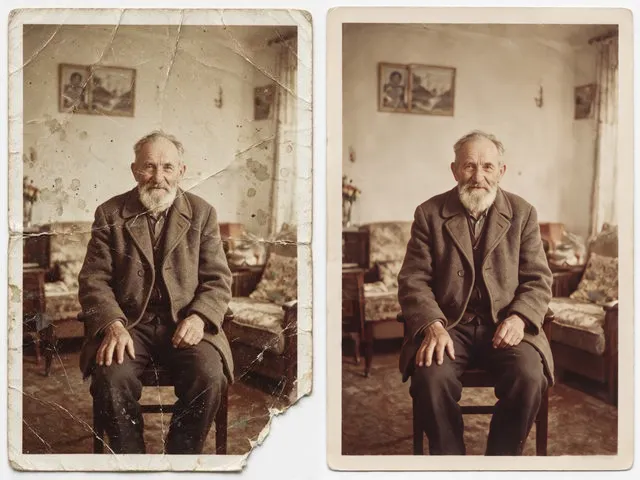 BeforeAfterOld Photo RestorationRepair the scratches, tears, creases, and fading in a scanned print, keeping the people exactly as they are.
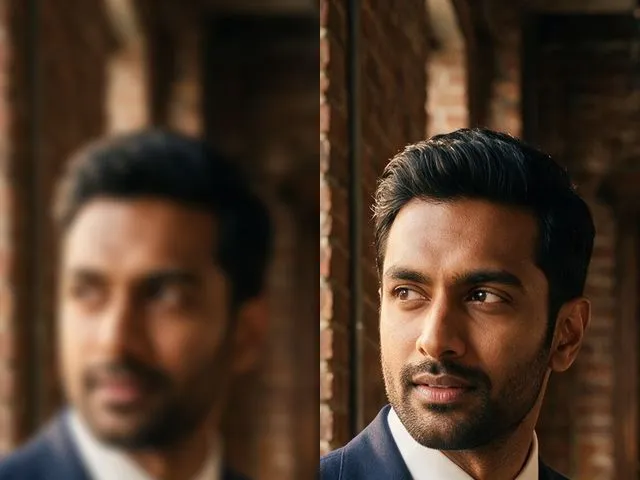 BeforeAfterUnblur ImagePull detail back out of a soft or slightly out of focus shot, with faces handled more carefully than the rest.
 BeforeAfterImage UpscalerEnlarge a small photo and rebuild the detail that a plain resize would smear into soft blocks.