Restore an old photo
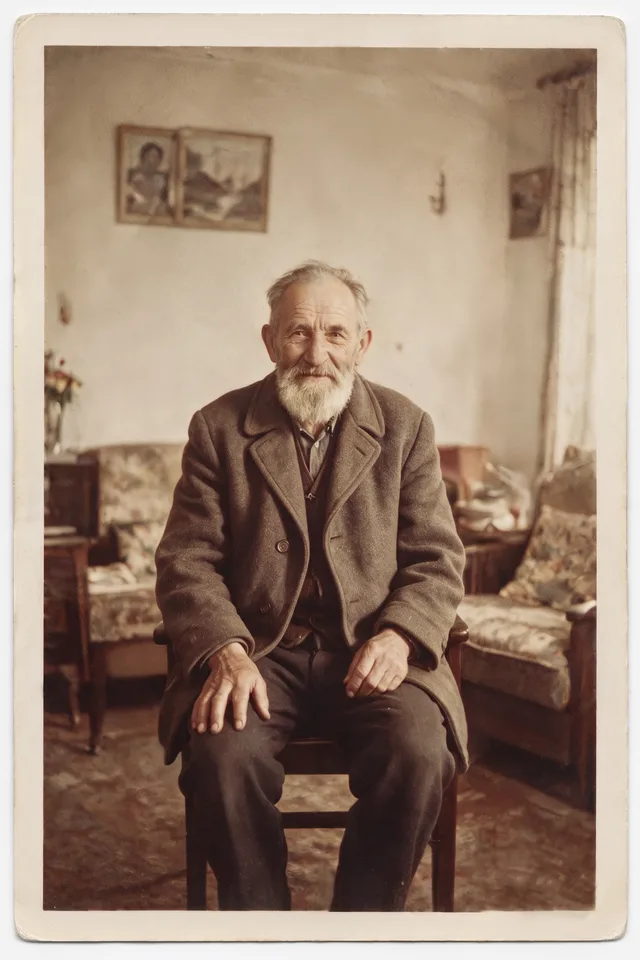
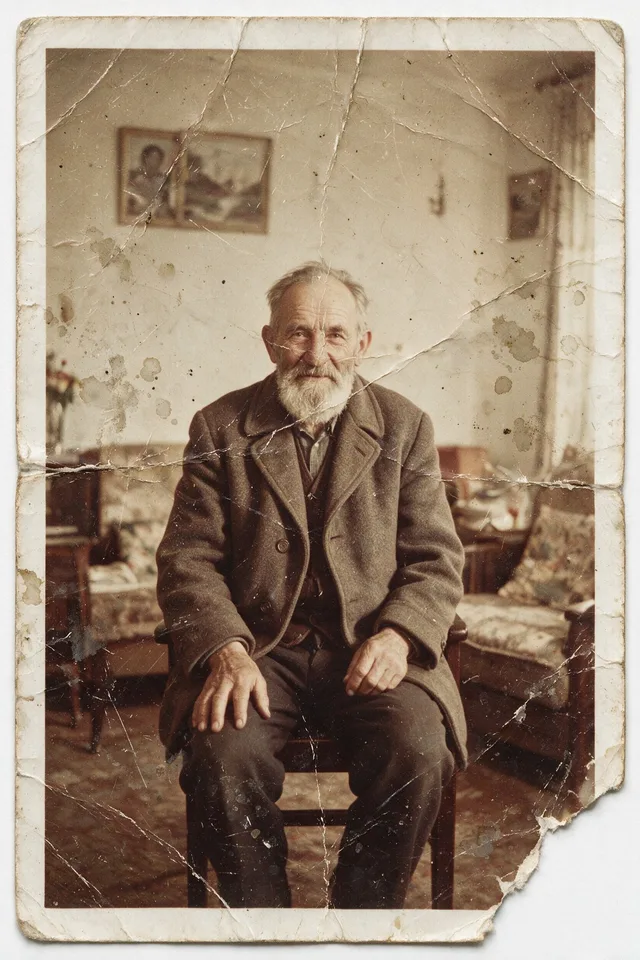
Repair the scratches, tears, creases, and fading in a scanned print, keeping the people exactly as they are.
Try it
No photo chosen yet.
Drop a photo here
or
JPG, PNG, or WebP, up to 25 MB and 20 megapixels.
Free to try without an account. Signed in, a run costs 4 credits.
Sign up free for High qualityHow it works
- Add a photo: drag it onto the uploader or pick one from your device.
- An editing model repairs the damage and recovers detail in faces and clothing, holding the original framing.
- Look at the result, then download it or run another photo through.
These models reconstruct rather than recover: they produce a plausible version of what was probably there, so results vary with the source photo. Run it again or try a different image if the first pass misses.
What to expect
An instruction editing model repairs a damaged print: scratches, creases, tears, dust, foxing, and the flat gray of a photograph that has faded. Framing stays put and the instruction tells the model to leave every identity alone. It earns its keep on moderate damage over a face that is still legible. It invents wherever the information is simply gone: a missing corner, an eye lost under a crease, or a face the size of a thumbnail in a group shot comes back plausible rather than true. Scan at the highest resolution you can manage even though the pass does not add detail beyond what you give it, because a sharp scan carries more real information into the model than a phone snap of the same print.
Best results: The highest resolution scan or photo of the print you can manage, taken flat and evenly lit, with no glare across the surface.
Common questions
- Will the person still look like themselves?
- The instruction asks the model to preserve identity, and that holds up well on a face that is still readable in the original. A small or badly damaged face is rebuilt from very little, so compare it against another photo of the same person before printing it.
- Can it repair a torn corner or a missing piece?
- Small missing areas fill in convincingly. A large hole is invention: you get something plausible in the space, not what was actually there.
- Does it add color as well?
- No, it stays in the tone of the original. Run the repaired version through the Photo Colorizer if you want color, in that order.
- What resolution do I get back?
- The editing model works at around one megapixel and the result is resized back to the dimensions you uploaded, so the file matches your scan. That resize does not add detail beyond what the original held.
- Does glare or album sleeve texture matter?
- It does. Heavy glare and the woven texture of some album sleeves get read as part of the photograph and are restored along with it. Take the print out of the sleeve and light it from an angle if you can.
- What happens to family photos I upload?
- They are deleted on a timer: 7 days after an anonymous run, 30 days when you are signed in. Download what you want and the copies on our side expire on their own.
Be photographed, any way you like
Save your photographs once, then every look becomes a photograph of you.





Related tools
 BeforeAfterPhoto ColorizerAdd natural, period plausible color to a monochrome photo, with skin tones kept believable.
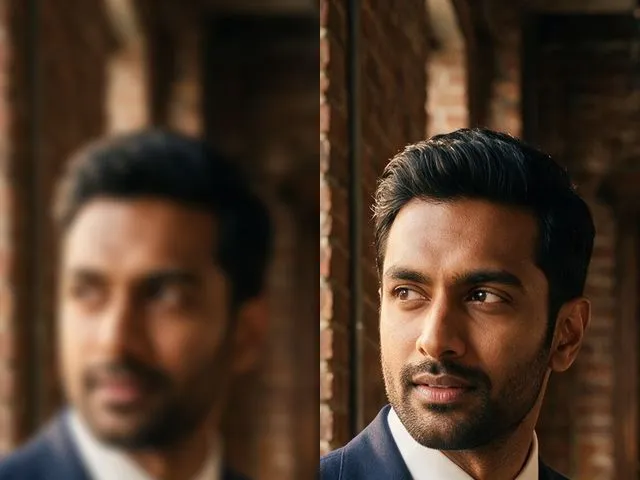 BeforeAfterUnblur ImagePull detail back out of a soft or slightly out of focus shot, with faces handled more carefully than the rest.
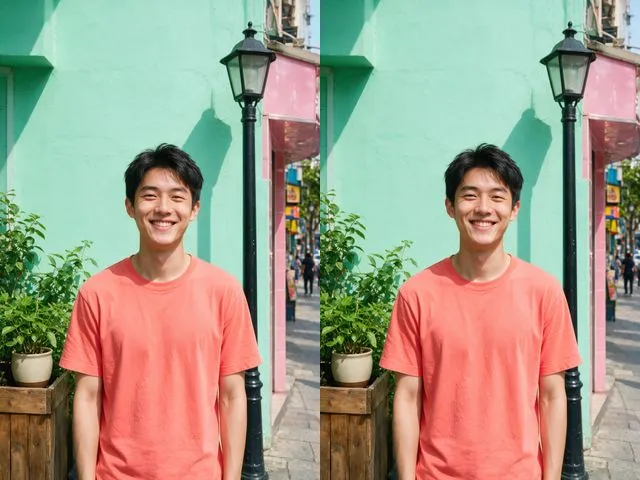 BeforeAfterImage UpscalerEnlarge a small photo and rebuild the detail that a plain resize would smear into soft blocks.
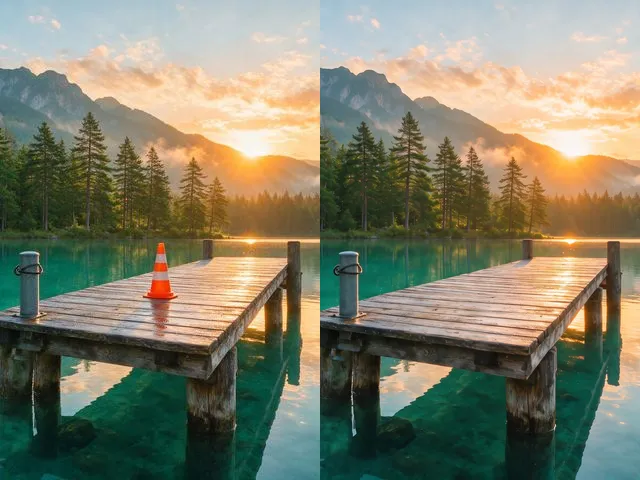 BeforeAfterObject and People EraserMark what you want gone and the model fills the space with what should have been behind it.